OBS Studio free download is available from the official OBS Project for Windows, macOS and Linux. OBS Studio 32.2.2 is a free, open-source application for screen recording, gameplay capture, tutorials, video calls and live streaming. This guide explains which installer to choose, what changed in the latest release, how to complete the first setup and how to solve common recording problems. Use only the official links below—Softvexo does not host installers, modified files or cracked software.
What Is OBS Studio 32.2.2?
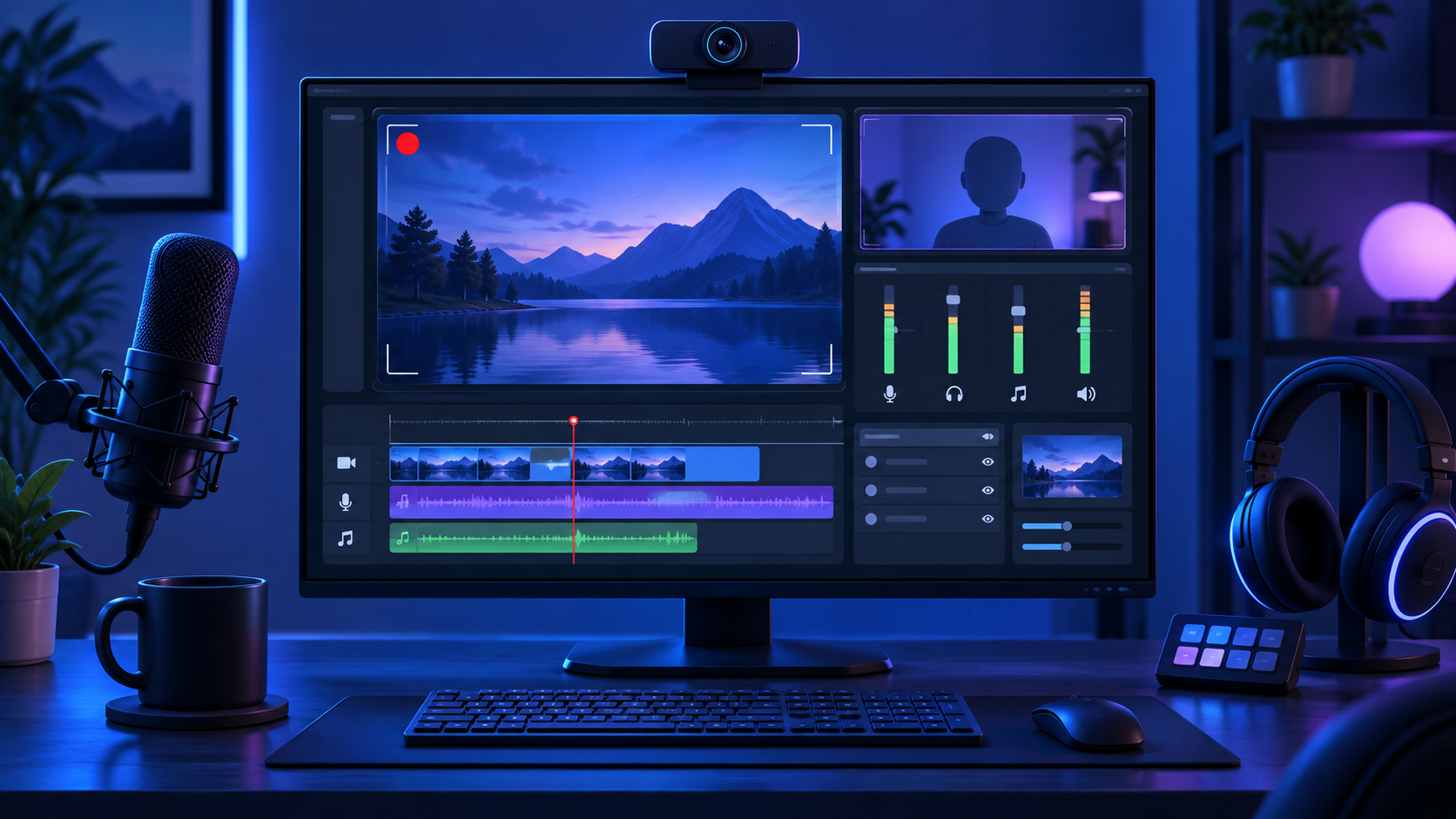
OBS Studio, short for Open Broadcaster Software Studio, combines video and audio sources into scenes that you can record or stream. A scene can contain a display, one application window, gameplay, a webcam, images, text and multiple audio devices. It is useful for creators, teachers, gamers, businesses and anyone who needs flexible recording controls without paying a subscription.
Version 32.2.2 was released on August 14, 2026. It is a hotfix release based on OBS Studio 32.2 and is currently listed as the latest stable version on the official download page.
What’s New in OBS Studio 32.2.2?
The 32.2 series introduced a redesigned Add Source dialog, improved the frame-rate selector, added dynamic bitrate support for multitrack video and added WebP support when a directory is used as an Image Slide Show source. It also includes stability, capture, audio mixer and performance fixes.
The 32.2.2 hotfix fixes an issue that could prevent plugins from loading correctly on the first Windows launch after an update. OBS also warns that the NVIDIA SDK was updated to version 13, so NVENC users need NVIDIA driver version 570 or newer. Updating the graphics driver may help if hardware encoding stops working after the OBS update.
On Mac, OBS Studio 32.2.x does not support macOS 12 because of an updated Qt framework. The official download page currently requires macOS 13 or newer. Users who must remain on macOS 12 should use OBS Studio 32.1.2, as specified in the official release notes.
Supported Systems and Downloads
- Windows: Windows 10 or Windows 11. The standard installer is the easiest choice for most users.
- macOS: macOS 13 or newer. Choose the Intel installer for an Intel Mac or the Apple Silicon installer for a Mac with an M-series chip.
- Linux: OBS is officially distributed through Flathub. The OBS Project also provides a PPA for Ubuntu 24.04 and newer.
Compatible hardware only means OBS can run. Recording resolution, frame rate, encoder, scene complexity and streaming quality determine how much CPU and GPU performance you need.
How to Download OBS Studio Safely
- Open the official OBS Studio download page.
- Select Windows, Mac or Linux.
- For Windows, choose the installer. On Mac, select the package that matches Intel or Apple Silicon.
- Open the downloaded file and follow the installation prompts.
- Launch OBS and allow camera, microphone or screen-recording permissions only when required for your setup.
Avoid websites that advertise “premium OBS,” cracks, activation keys or bundled codec packs. OBS Studio is already free and does not need an activator. Before opening a download, confirm that the website address is obsproject.com or an official distribution link provided there.
First-Time OBS Setup
When OBS starts for the first time, run the Auto-Configuration Wizard. You can open it again later from Tools → Auto-Configuration Wizard. It considers whether you want to record or stream, your computer hardware and your network connection.
- Create or select a scene.
- Click the plus button in the Sources dock and add Display Capture, Window Capture, Game Capture or a camera.
- Watch the Audio Mixer meters and select the correct microphone and desktop-audio devices in Settings → Audio.
- Review resolution, encoder and recording location under Settings.
- Make a short test recording before an important stream or long session.
Game Capture is designed for capturing 3D games on Windows. Display Capture records the full desktop, while Window Capture limits the recording to a selected application. Choose only the source you need to reduce clutter and the risk of showing private information.
Common OBS Problems and Quick Fixes
Recording is laggy or says “Encoding Overloaded”
Close other GPU-heavy programs, limit the game frame rate and reduce the output frame rate from 60 FPS to 30 FPS if necessary. On Windows, running OBS as administrator can help reserve GPU capacity. Complex scenes with many browser sources, filters or animations also require more resources.
Black screen in Game or Display Capture
Confirm that the correct capture method and application are selected. Laptop users with two graphics processors should make sure OBS and the captured application use compatible GPU settings. Update the graphics driver and test a new source before changing many settings at once.
Microphone or desktop audio is missing
Check whether the meters move in the Audio Mixer. If they do not, open Settings → Audio and manually choose the correct devices. Also check operating-system microphone permissions and make sure the source is not muted.
OBS Studio FAQ
Is OBS Studio completely free?
Yes. OBS Studio is free and open-source. There is no paid edition required for normal recording or streaming features.
Can OBS record without streaming?
Yes. You can use Start Recording without connecting a streaming account. Choose a recording folder and format in Settings → Output before you begin.
Does OBS work on Windows 11?
Yes. The official Windows release supports Windows 10 and Windows 11.
Which OBS version works on macOS 12?
The OBS Project recommends OBS Studio 32.1.2 for macOS 12. Version 32.2.x requires a newer macOS release.
Do I need extra codec packs?
Most users do not need third-party codec packs to start recording. Install OBS from the official source and use its built-in output options.
Related Free Software Guides
After recording, you can test the video with our VLC Media Player official download guide. For voice, video and community chat, see the Discord download guide for PC, Mac and mobile.
Final Recommendation
OBS Studio 32.2.2 is a strong choice for free screen recording and live streaming on supported systems. Download it from the official OBS Project, run the Auto-Configuration Wizard and create a short test recording before changing advanced settings. If performance is poor, simplify scenes and reduce output demands gradually instead of installing unofficial “optimized” builds.