
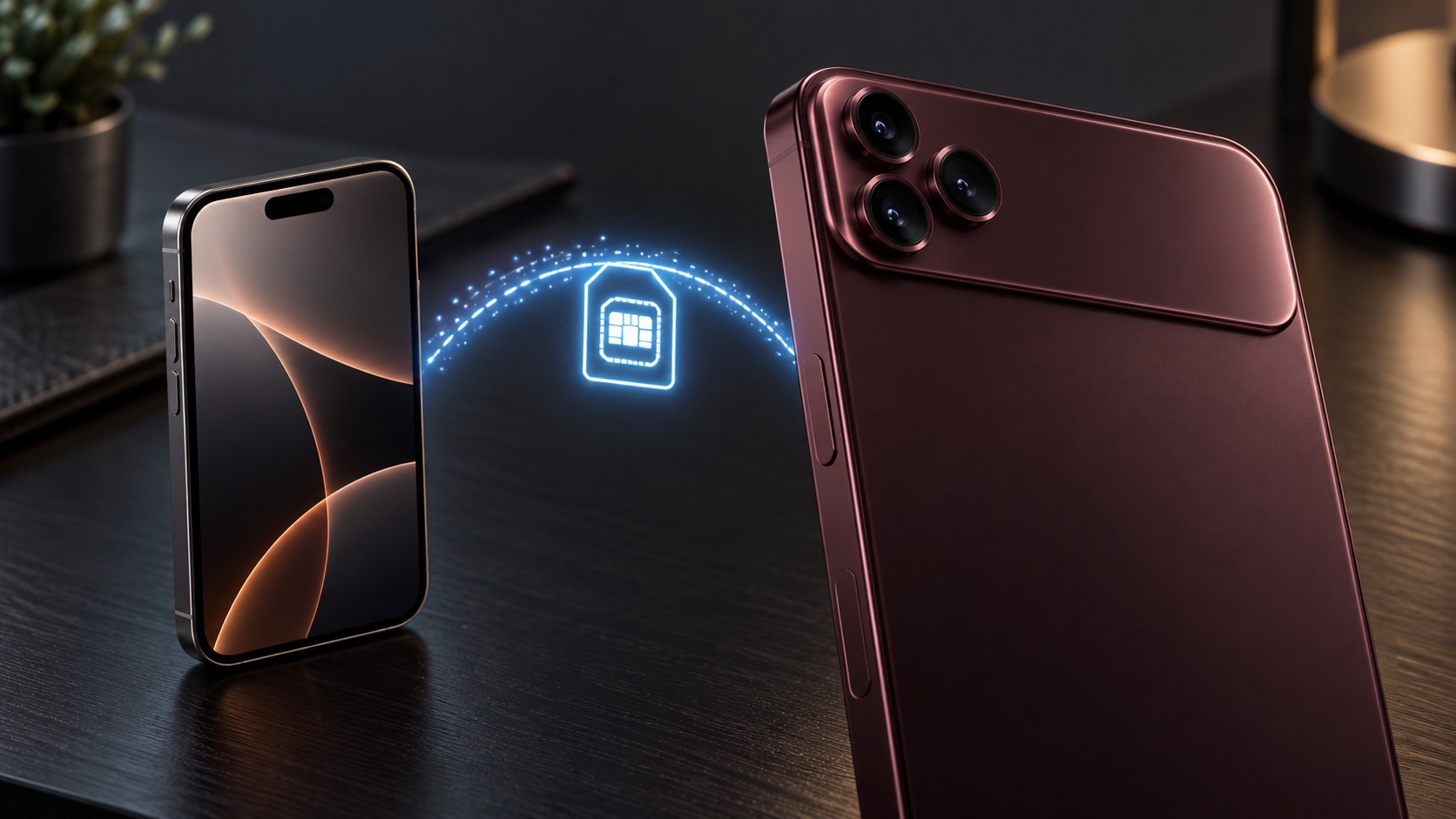
Got a new iPhone 18 Pro or iPhone 18 Pro Max and need your phone number to work today? The models arrived in stores on September 18, 2026, and moving a cellular plan is often one of the first setup tasks. The quickest route may be Apple's eSIM Quick Transfer, but its availability depends on your carrier and the devices involved. Here is how to prepare, transfer, and confirm service without losing access to your number at the wrong moment.
Apple's official iPhone eSIM setup guide is the primary source. For other capabilities, see our iPhone 18 Pro features guide.
First, check your carrier and phone
An eSIM is a digital SIM that activates a cellular plan without inserting a physical card. You need a carrier that supports eSIM and normally a Wi-Fi or hotspot connection on the new iPhone. Apple lists exceptions for some eSIM-only models in certain countries and regions, so follow the instructions shown on your particular device.
Check Apple's eSIM carrier directory for your country or region. It distinguishes eSIM Quick Transfer, eSIM Carrier Activation, and other methods such as a carrier QR code or app. A carrier's presence on an eSIM list does not automatically mean that it supports Quick Transfer for your specific plan. When in doubt, check your carrier account or ask its support team before starting.
US and European readers should also check their specific phone model and carrier. Do not assume that the SIM tray or activation choices on a phone sold in one market match a phone sold elsewhere. Keep the old phone available and do not erase it during setup.
Prepare both iPhones for Quick Transfer
Apple's current Quick Transfer requirements are straightforward: sign in to both devices with your Apple Account, unlock the previous iPhone with its passcode, keep the phones nearby with Bluetooth turned on, and run iOS 18.4 or later on both. Update the old phone first if it is eligible but running an older release. Connect the new phone to Wi-Fi or a hotspot.
If you use your number for account verification, arrange another way to access those services before beginning. Once the plan activates on the new iPhone, the old SIM stops working for that line. Complete the transfer when you have time to test calls and mobile data afterward.
Quick Start can help move personal data from an older iPhone, but data migration and cellular-plan activation are separate things. Seeing your photos and apps on the new phone does not prove the number has transferred. For general setup and post-update checks, our iOS 27 settings checklist covers other essentials.
Transfer your number during iPhone setup
Turn on the new iPhone and follow its setup screens. If Set Up Cellular asks whether to transfer a number, choose the plan from your previous iPhone and follow the prompts on both phones. Confirm on the older iPhone with Transfer, or enter the verification code shown on the new phone if prompted. Wait for activation to finish before testing service. Apple says iOS 26 or later can transfer more than one phone number to a new iPhone.
Do not rush to remove or erase anything while the process is underway. The cellular plan on the previous SIM deactivates when the new plan activates. If a Finish Setting Up Your Carrier's Cellular Plan banner appears, follow it to complete the carrier's part of the process. Contact the carrier if that stage fails.
Transfer after the new iPhone is set up
Already reached the Home Screen? On the new iPhone, open Settings → Cellular → Set Up Cellular or Add eSIM. Choose a plan offered from your old iPhone. If no number appears, tap Transfer From Nearby iPhone. Confirm the transfer on the previous phone, enter the displayed code if asked, and wait for activation.
If the option is missing, that does not mean every eSIM transfer is impossible. Your carrier may require its own activation method. Check the carrier's official instructions rather than installing an unofficial “eSIM unlock” app.
If Quick Transfer is unavailable
Apple documents several legitimate alternatives. With eSIM Carrier Activation, a carrier can assign a plan digitally to your new iPhone; follow the carrier-plan notification or setup prompts. If the carrier issues a QR code, scan it as Apple instructs during setup or afterward and complete the on-screen steps. Some carriers provide an official app, link, or manual activation details. Use only information supplied through a verified carrier channel, and keep activation codes private.
Switching from Android? Apple says some carriers and selected manufacturers support device-to-device eSIM transfer with iOS 26 or later, while other transfers require carrier activation or a QR code. Follow Apple's Android-to-iPhone eSIM instructions and the carrier's requirements rather than assuming the iPhone-to-iPhone steps will work.
Check that the transfer worked
Look for the carrier name or signal on the new iPhone. Then place a call, send a message, and test mobile data with Wi-Fi turned off briefly. In Settings → Cellular, check that the intended line is present and enabled. If you use two numbers, confirm which line is selected for calls and cellular data. Check any services that send sign-in codes to your phone number after the line is active.
The old phone can still contain your photos and apps, but the transferred cellular line will no longer work on its old SIM. Erase or trade in the old phone only after your data, account access, and new line are confirmed.
Fix common activation problems
If the carrier does not appear, Apple recommends checking Wi-Fi and the latest supported iOS version, toggling Airplane Mode, checking whether the line appears in Settings → Cellular and switching that line off and on, then restarting. In Settings → General → About, check for a carrier settings update. Apple's eSIM troubleshooting page gives the full sequence.
If activation still fails, contact the carrier with the exact error message and your phone's IMEI or EID from Settings → General → About. Share account PINs only through the carrier's official support channel. Do not post an eSIM QR code, activation token, or account credentials in a public comment or chat.
Frequently asked questions
Can I move a physical SIM number to eSIM? Some carriers support converting a physical SIM as part of Quick Transfer; others require carrier assistance. Check your carrier's method.
Will my old number stop working? The old SIM deactivates for that plan when the new iPhone's cellular plan activates, according to Apple. Test service on the new phone before erasing the old one.
Do all European and US carriers support the same process? No. Activation choices depend on the country, carrier, plan, and device. Apple's carrier directory and your carrier's official instructions are the best starting points.
Is a third-party eSIM download required? No. Use iPhone settings and the methods provided by Apple and your carrier. Avoid profiles or QR codes from unknown sellers.
Fact checked against Apple Support and Apple's September 2026 launch information on September 22, 2026. Carrier availability and activation screens can change; verify them for your own plan before transferring.